


OpenAI just dropped $1 million to back Codex CLI projects, and honestly, it's changing how we think about coding. Instead of hunting through documentation or switching between multiple tools, you can now chat with your terminal in plain English to read, tweak, and execute code.
Think of it this way: a regular CLI tool just follows basic text commands. But Codex CLI? It's like having a coding buddy who actually understands what you're trying to accomplish. It combines ChatGPT's smart reasoning with the ability to run code right on your machine. Your data stays put everything happens locally.
What's really cool is how flexible it is. Toss it a screenshot of a bug, sketch out a rough idea, or just describe what you need in regular words. It gets it.
We're going to walk through what makes Codex CLI tick from its approval settings that keep you in control to how it handles different types of input. You'll see how it can speed up feature development, make debugging less painful, and just generally make your dev workflow smoother. Works great on macOS and Linux, plus Windows folks can jump in using WSL2.
What is OpenAI’s Codex CLI?
The OpenAI Codex CLI is an open-source command-line tool that puts OpenAI's cutting-edge o4 reasoning models right at your fingertips. This lightweight CLI tool handles reading, modifying, and executing code without ever leaving your local machine.
It's built specifically to tackle the stuff developers deal with daily—shipping features faster, squashing bugs, and making sense of code you've never seen before. Since everything runs locally, your source code stays locked down in your own environment unless you decide to share it.
Here are the key features of Codex CLI:
- Zero-setup installation: Just run one NPM command and you're good to go.
- Multimodal inputs: Throw text, screenshots, or even rough diagrams at it the AI figures out what you need and writes the code to match.
- Rich approvals workflow: Pick how hands-on you want to be with three different modes: Suggest, Auto Edit, and Full Auto.
- Runs entirely in your terminal: Your basic terminal becomes a triple threat code editor, AI assistant, and debugging powerhouse all in one.
Here is more information on approval modes:
- Suggest (default): The AI reads your files and suggests edits or shell commands, but waits for your thumbs up before changing anything.
- Auto Edit: The AI can read and write files on its own but still asks permission before running any shell commands.
- Full Auto: The AI takes complete control, reading, writing, and executing commands within a secure sandbox that's disconnected from your network and limited to your current directory.
New to AI development? We'd definitely recommend starting with the AI Fundamentals track to get your bearings.
Why Codex?
Codex CLI is perfect for developers who practically live in their terminal and want ChatGPT's smart reasoning combined with the ability to actually execute code, work with files, and iterate quickly all while keeping everything under version control. Think of it as chat-driven development that actually gets your codebase and can act on it.
- Zero setup - Just bring your OpenAI API key and you're instantly productive!
- Full auto-approval that's still safe and secure thanks to network isolation and directory sandboxing
- Multimodal - pass in screenshots or diagrams to implement features
Plus it's completely open-source, so you can peek under the hood and even contribute to its evolution!
How Codex CLI Improves Traditional CLI Workflows
Traditional command lines demand perfect syntax and encyclopedic knowledge of commands. OpenAI Codex CLI throws those roadblocks out the window. Since its April 15, 2025 launch, this tool has transformed how we interact with terminals by bringing natural language understanding directly to your command line.
Here's what sets it apart: Codex CLI runs entirely on your local machine, not in some distant cloud like most AI coding assistants. Your privacy stays bulletproof while you get instant assistance. Source code, environment variables, system commands everything stays on your hardware, which is huge for teams that take security seriously.
The multimodal capabilities are where things get really interesting. Fire off text prompts, snap screenshots, or even sketch something rough to communicate what you want to build, debug, or figure out. You could literally say "Move all log files older than 30 days to an archive folder," and it'll figure out the exact syntax for you.
The "--approval-mode" settings put you in control of how much autonomy the tool gets. You can keep it locked down to suggestions only, or let it run fully automated your call. This human oversight layer prevents those "oh no, what did it just do?" moments with unexpected commands or file changes.
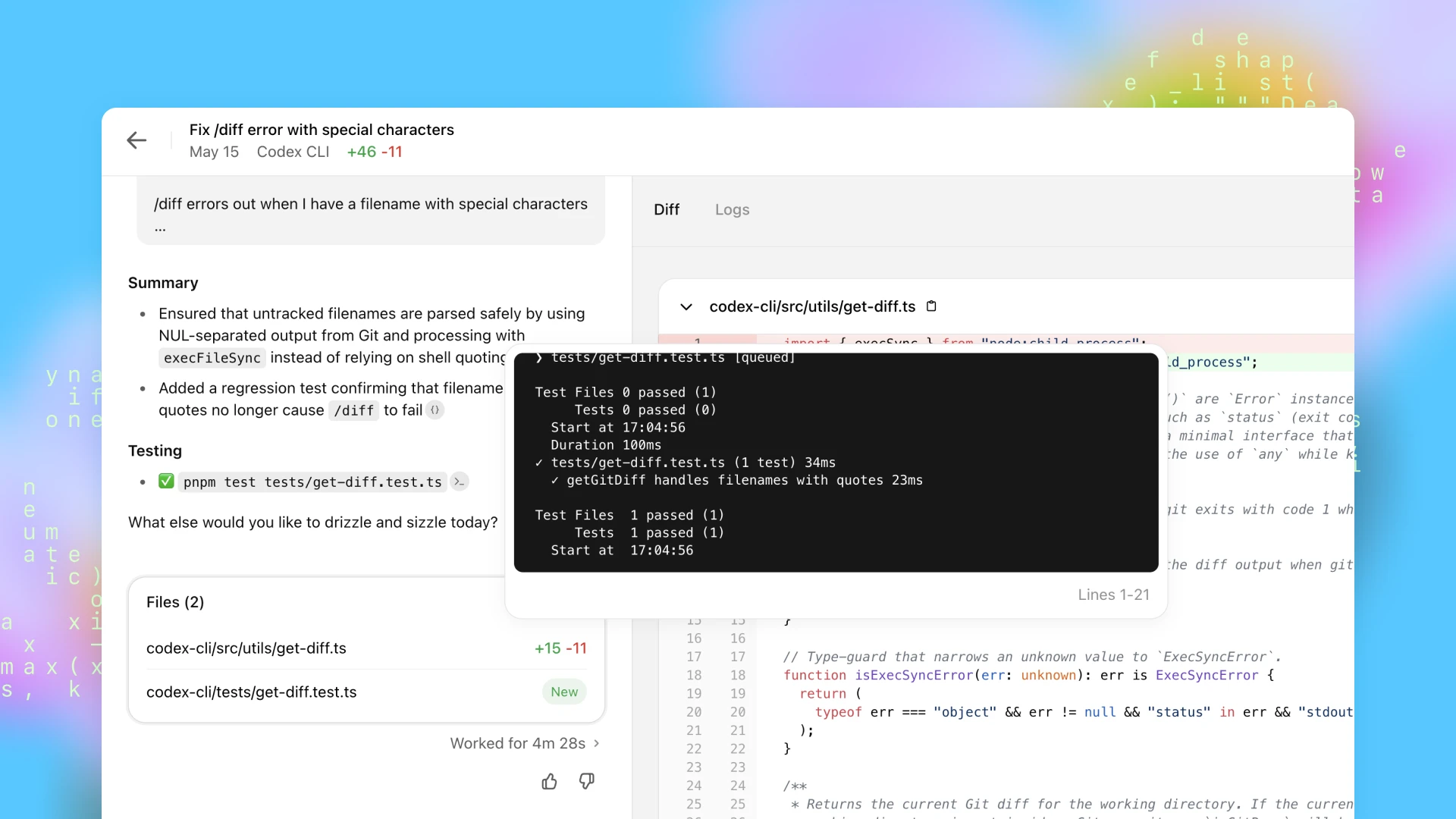
OpenAI Codex Explained for First-Time Users
OpenAI Codex goes beyond GPT-3 by training on both natural language and billions of lines of real code from public repositories. Unlike general language models, this one's built specifically for programming tasks.
Here's how it works: you feed it prompts—whether that's plain English descriptions or actual code snippets and it predicts what code should come next based on patterns it's seen before. Ask it to "sort a list of numbers in Python," and it'll whip up code using either built-in functions or custom algorithms.
The language support is pretty solid across Python, JavaScript, Bash, C#, Java, Ruby, Rust, SQL, TypeScript, and more. Python is definitely its sweet spot though. But it's not just a code generator it can explain what code does, convert between languages, and refactor messy implementations.
Here's the reality check: Codex doesn't actually execute code or "think" through problems logically. It's essentially a very sophisticated pattern-matching system that predicts what should come next based on its training data. While it'll definitely speed up your coding workflow, you still need to review everything it produces for bugs, security vulnerabilities, or outdated approaches.
Codex CLI represents OpenAI's bigger move toward autonomous software agents. The tool essentially gives AI models direct access to your system's essential tools file systems, interpreters, build environments, and more.
Setting Up Codex CLI
Follow these steps to set up OpenAI Codex CL on your system.
System requirements
Before you dive into Codex CLI, make sure your system checks these boxes:
- Operating Systems:
macOS 12+
Ubuntu 20.04+/Debian 10+
Windows 11 (optional WSL2)
- Node.js: Version 22 or newer (stick with LTS if you want fewer headaches)
- Git: Version 2.23+ (not mandatory, but you'll miss out on some handy PR features without it)
- RAM: 4 GB minimum to get by, but 8 GB will keep things running smoothly
Installation steps
1.Install Node.js: Make sure you've got Node.js version 22 or newer running on your system. Grab it from the official Node.js website if you haven't already.
2.Install Git: If you don't have Git yet? Head over to git-scm.com and get it set up you'll thank yourself later for the extra functionality.
3.Set up Powershell: Windows users will want to configure their PowerShell terminal with these steps:
- Open your PowerShell profile by running:
- Add the following line to your profile to set up Git Bash as the default shell:
4.Install Codex CLI: Run the following command to install Codex CLI globally:
5.Set Your OpenAI API Key: To use Codex CLI, you need an OpenAI API key. Export your API key as an environment variable:
Using Codex CLI
1.Type the following command in your terminal to launch the interactive mode:
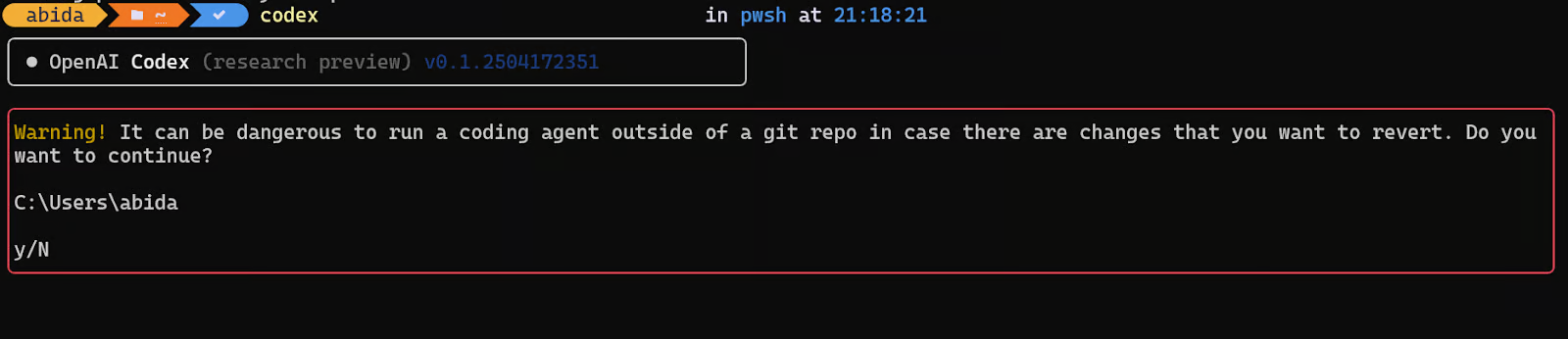
2.If you are not inside a Git repository, you will see a warning stating that it is dangerous to build a project outside of a Git repository. When prompted, press “N” to proceed.
3.Navigate to your project directory using the cd command:
4.If your project is not already a Git repository, initialize it by running:
5.Once inside your project directory, type the following command to start using Codex CLI in interactive mode:
In this mode, you can chat with the AI agent just like you would with ChatGPT. Simply type out your coding questions or requests, and the AI will jump in to generate code, help debug issues, or modify existing code based on what you need.
Conclusion
OpenAI's Codex CLI brings powerful AI assistance directly to your terminal, eliminating the need to juggle multiple tools while coding. What sets it apart is the privacy-first approach everything runs locally on your machine, keeping your code secure while delivering ChatGPT level intelligence.
The tool excels at speeding up routine tasks, debugging tricky issues, and helping you understand unfamiliar codebases. With multimodal capabilities that let you use sketches or screenshots as input, it bridges the gap between ideas and working code remarkably well.
While you'll still need to review its suggestions, Codex CLI feels like a genuine step forward in developer productivity. For anyone who lives in the terminal, it's worth trying this open-source tool might just change how you approach coding entirely.


.png&w=1200&q=75)