


What is Cursor AI?
Cursor AI is an AI-powered code editor designed to make software development easier. As a fork of Visual Studio Code (VS Code), it retains the user-friendly interface and extensive ecosystem of VS Code, making it easier for developers already familiar with the platform to transition.
Cursor AI integrates advanced AI capabilities through OpenAI’s ChatGPT and Claude. This integration allows Cursor AI to offer intelligent code suggestions, automated error detection, and dynamic code optimization.
What is VS Code?
Visual Studio Code, commonly referred to as VS Code, is an integrated development environment developed by Microsoft for Windows, Linux, macOS and web browsers. Features include support for debugging, syntax highlighting, intelligent code completion, snippets, code refactoring, and embedded version control with Git.
Who is it for?
- Non-coders: Easily explore and prototype code with AI assistance—no need to write from scratch or know complex syntax.
- Developers: Speed up development with AI pair programming, context-aware suggestions, and seamless refactoring.
- Engineers: Handle large codebases, debug faster, and automate repetitive coding tasks.
- Students: Learn by doing—get instant explanations, code examples, and feedback as you code.
- Technical writers: Understand and document codebases faster with inline explanations and smart navigation tools.
Key Features of Cursor
Cursor offers key autocompletion and predictive code features:
- Autocomplete and code prediction: Cursor provides autocomplete functionality that predicts multi-line edits and adjusts based on recent changes.
- Code generation: Familiar with recent changes, Cursor predicts what we want to do next and suggests code accordingly.
- Multi-line edits: It can suggest edits that span multiple lines.
- Smart rewrites: The editor can automatically correct and improve our code, even if we type carelessly.
- Cursor prediction: It predicts the next cursor position, allowing seamless navigation through the code.
Key differentiators in Cursor:
AI Pair Programming:
- Traditional IDE: ❌ Not built-in
- Cursor: ✅ Built-in AI assistant for real-time help
Git-Aware Context:
- Traditional IDE: ❌ Limited or manual integration
- Cursor: ✅ Understands your Git repo for smarter help
Inline Code Explanations:
- Traditional IDE: ❌ Not available
- Cursor: ✅ Explains code directly in the editor
Refactoring with AI:
- Traditional IDE: ⚠️ Manual or tool-assisted
- Cursor: ✅ One-click intelligent refactoring
Natural Language Commands:
- Traditional IDE: ❌ Rarely supported
- Cursor: ✅ Use plain English to edit or generate code
Contextual Code Suggestions:
- Traditional IDE: ⚠️ Based on syntax/structure only
- Cursor: ✅ Suggests code based on full project context
Non-Coder Friendly:
- Traditional IDE: ❌ Steep learning curve
- Cursor: ✅ Easy entry point for beginners
Documentation Assistance:
- Traditional IDE: ❌ Manual writing
- Cursor: ✅ AI helps generate and edit documentation
How to Install Cursor?
Cursor AI provides an installation file for Linux, Windows, and MacOS that can be downloaded for free on their website.

datacamp
To install it on Windows and MacOS, we download it from their Home page and install the downloaded file as we’d install any other program.
In Linux, it comes as an AppImage file. Before executing it, we need to make it executable using:
chmod a+x cursor-0.40.3x86_64.AppImage
Then, we can execute it with:
./cursor-0.40.3x86_64.AppImage
We may need to replace the version 0.40.3x86_64 in the above commands depending on which version was downloaded. For more instructions on how to install app image files, check out their website.
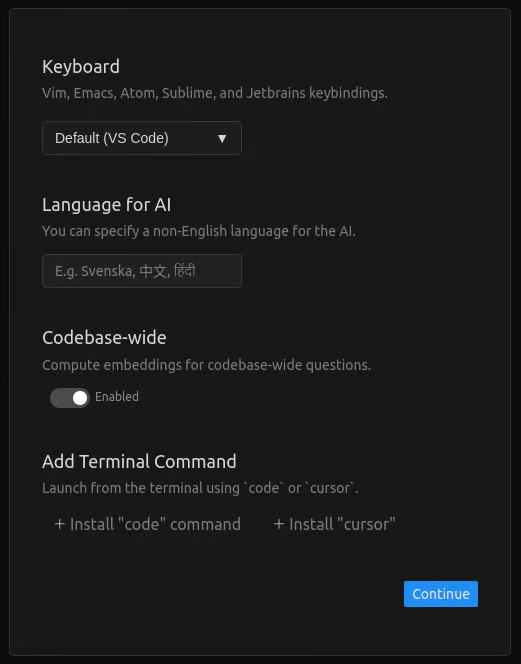
After installing, we’re prompted with the following configuration screen:
datacamp
- Keyboard: This option lets us configure the keyboard shortcuts. By default, it uses the VS Code shortcuts, which I recommend unless you are familiar with another code editor on the list.
- Language for AI: Here, we have the option of using a non-English language to interact with the AI.
- Codebase-wide: Enabling this option allows the AI to understand the context of the entire codebase.
- Add terminal command: If installed, these allow the Cursor AI editor to run from the terminal.
What Makes Cursor AI Code Editor Special?
Let’s be real—writing code can get overwhelming fast. Cursor helps you stay in flow with features that actually make a difference:
- Built-in AI Pair Programmer: Think of it like a coding buddy who’s always there. Stuck on a bug? Need a quick function? Just ask in plain English and it’ll generate, fix, or improve your code right in the editor.
- Understands Your Project, Not Just Your File: Cursor reads your whole codebase (thanks to Git-aware context), so its suggestions make sense across files—not just in the one you’re working on.
- Smart Inline Explanations: Curious what a weird chunk of code does? Hover or click, and Cursor gives you a plain-language explanation. Super helpful when you're reading legacy code or learning something new.
- Refactor Without the Headache: Rename functions, clean up messy code, or even restructure logic—all with a few clicks. It’s like having an extra pair of hands (that don’t complain).
- Natural Language Commands: Want to “make this function faster” or “add error handling”? Just type that, and Cursor will handle the technical lift.
- Docs That Write Themselves (Almost): Whether it’s generating docstrings or full-on documentation, Cursor helps technical writers and devs describe what the code is doing—accurately and quickly.
How to Use Cursor AI: 5 Use Cases 🚀
Throughout this guide, we’ll provide the MacOS shortcuts with the Cmd ⌘ key. The shortcuts are the same if you use Cursor on Windows or Linux, except the Ctrl key is used instead.
1. Inline code generation
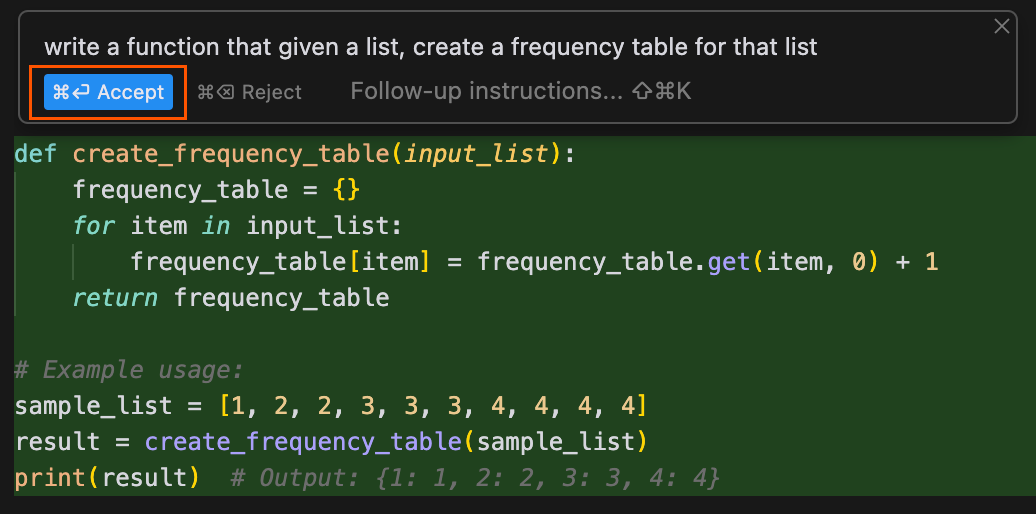
We use the Cmd+K shortcut to open the inline code generator. This opens a small prompt window where we insert a prompt to generate code:

datacamp
To generate code, we type a prompt and then click the generate button:

datacamp
This will generate the code, and we add it to our project by clicking the accept button:
datacamp
In this case, we used the cloude-3.5-sonnet model. We can select another model using the model dropdown selector:

datacamp
2. Interact with existing code
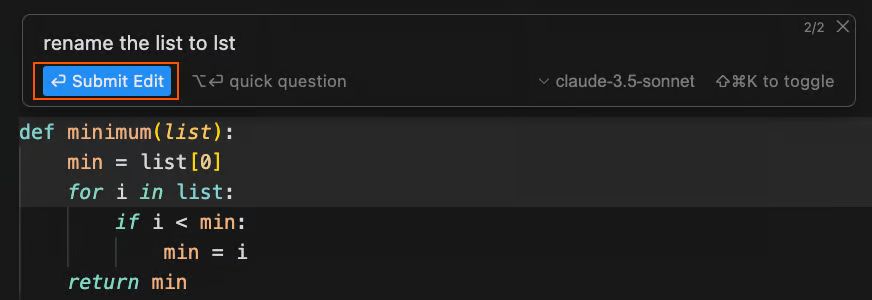
We can also use the inline chat to interact with existing code by selecting the relevant code before using the Cmd+K shortcut. This can be used to make changes to the code, such as refactoring, or to ask questions about the code. After typing the prompt, we click on the Submit Edit button to get the modifications:
datacamp
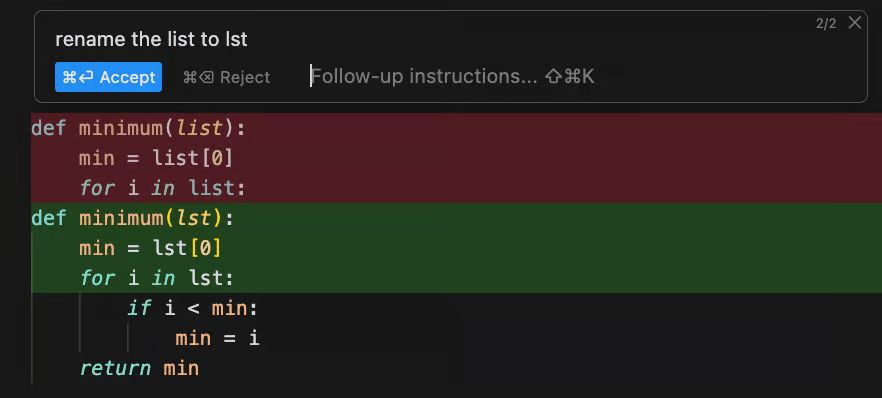
Code changes in the Cursor are presented as a diff. The red lines represent lines that will be deleted by the change, while the green ones represent the new changes that will be added:
datacamp
3. Asking questions about existing code
In the same way, we can ask questions about a piece of code by selecting it and using the Cmd+K shortcut. In the case of a question, we click the quick question button to submit the prompt:
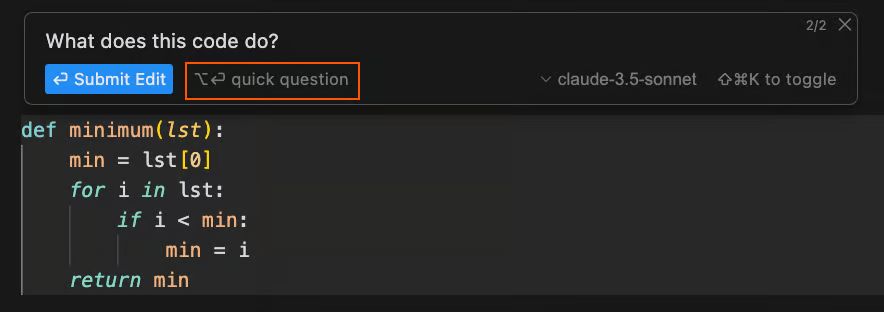
datacamp
After submitting the question, the system will generate the answer and display it in the following manner:
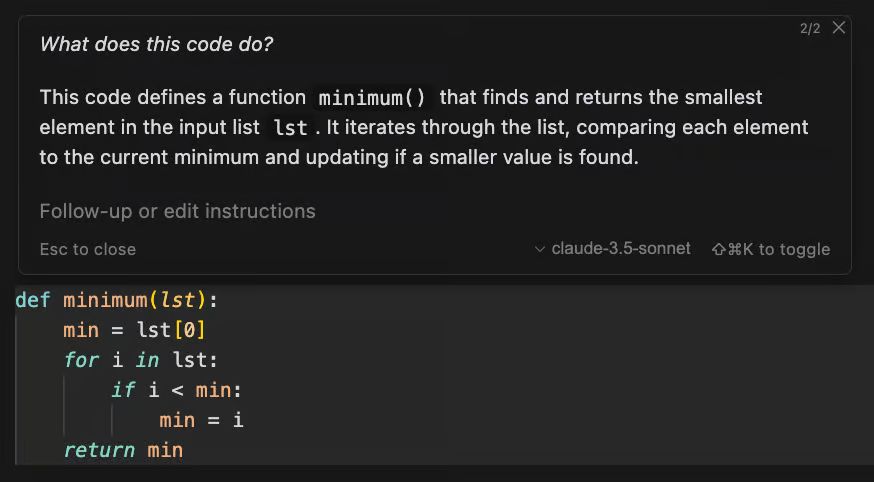
datacamp
4. Autocompletion of Code
While writing code, Cursor will suggest code completions generated using AI. Similar to traditional code completion, we can use the Tab key to incorporate these suggestions into our code.
For example, let's say we start implementing a function named maximum(). Cursor will recognize our intent and suggest an appropriate implementation. By pressing Tab, we can add the suggested code:
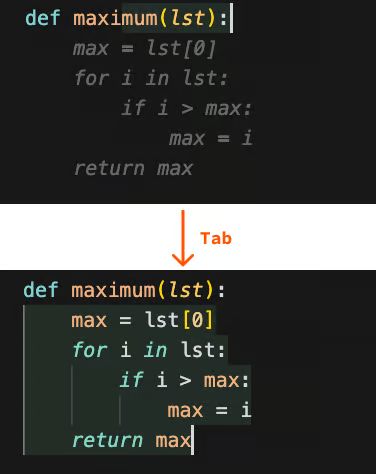
datacamp
Autocomplete also works with code written in natural language. For example, if we want to create a double for loop to iterate over all pairs in a list, we can simply describe this in plain text. Cursor will then provide the corresponding autocomplete suggestion, which can be integrated by pressing the Tab key:
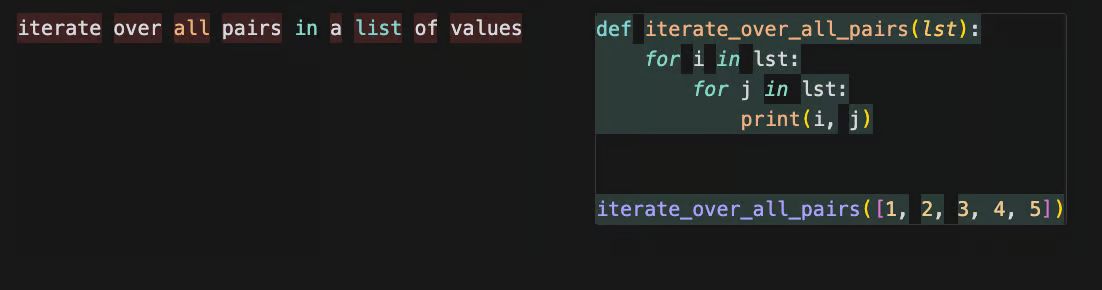
datacamp
5. Image Support
The Cursor chat also supports image inputs. For example, we could sketch a UI design for a website and ask it to generate the HTML and CSS code for it. To add an image, we can drag and drop it into the chat window.
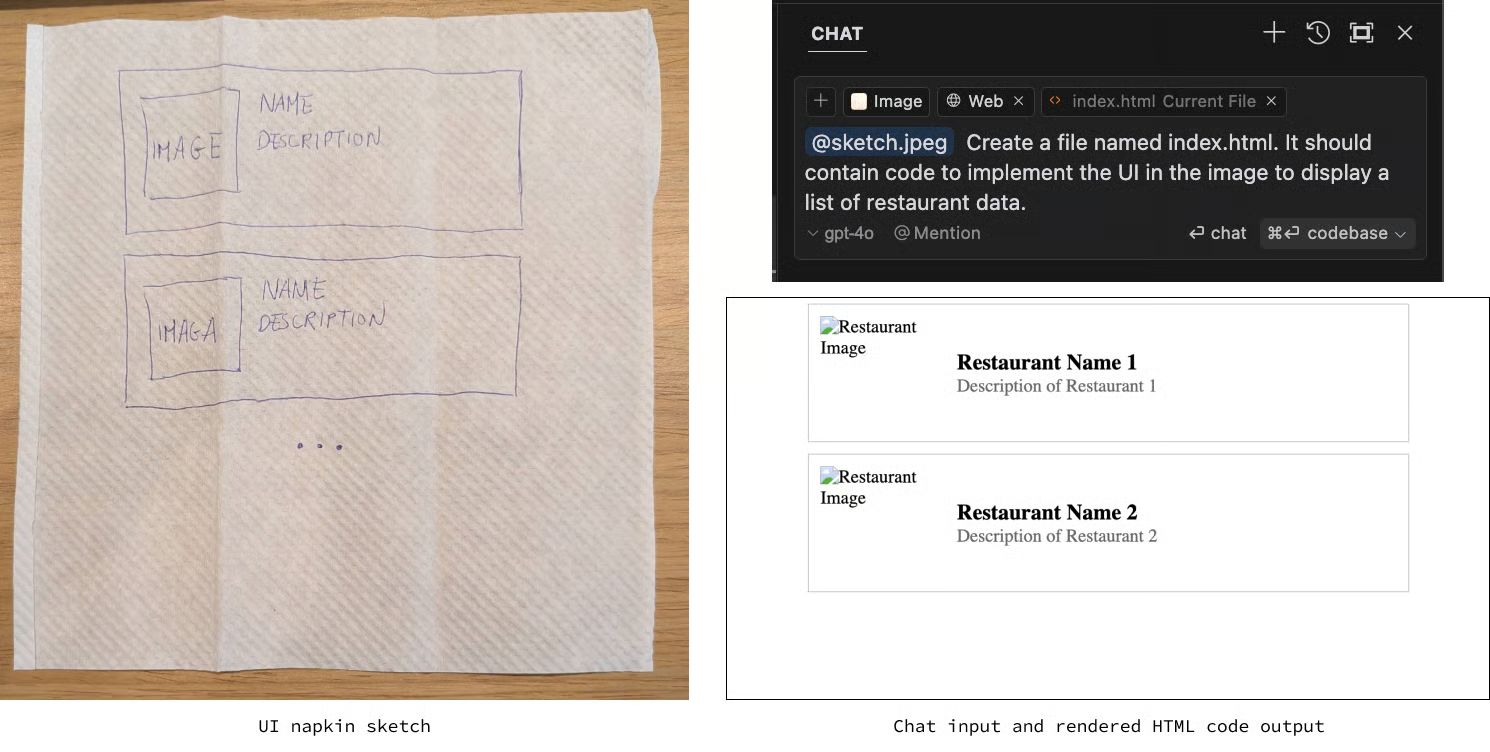
datacamp
Custom API Keys Support in Cursor
Configure custom API keys for OpenAI, Anthropic, Google and Azure to use your own LLM provider accounts in Cursor
Cursor lets you input your own API keys for various LLM providers to send as many AI messages as you want at your own cost. When a custom API key is used, we will use that when calling the LLM providers.
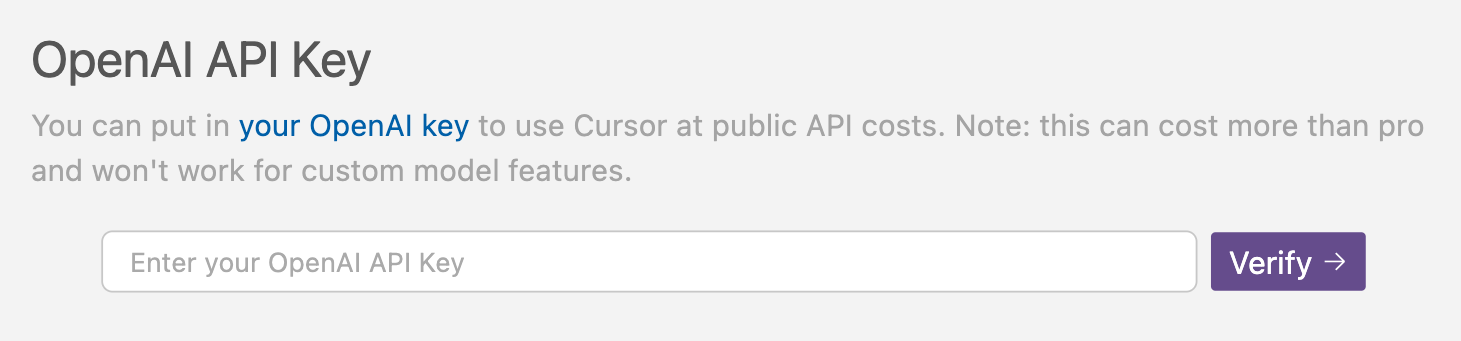
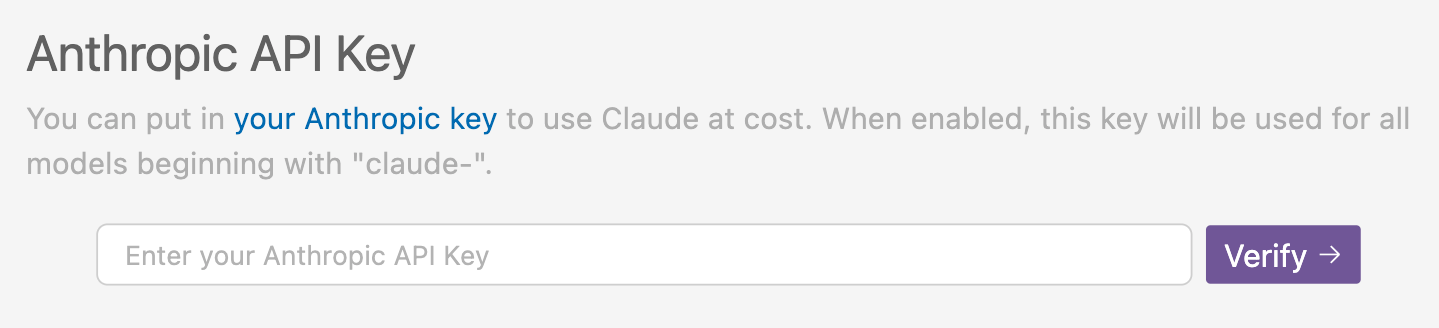
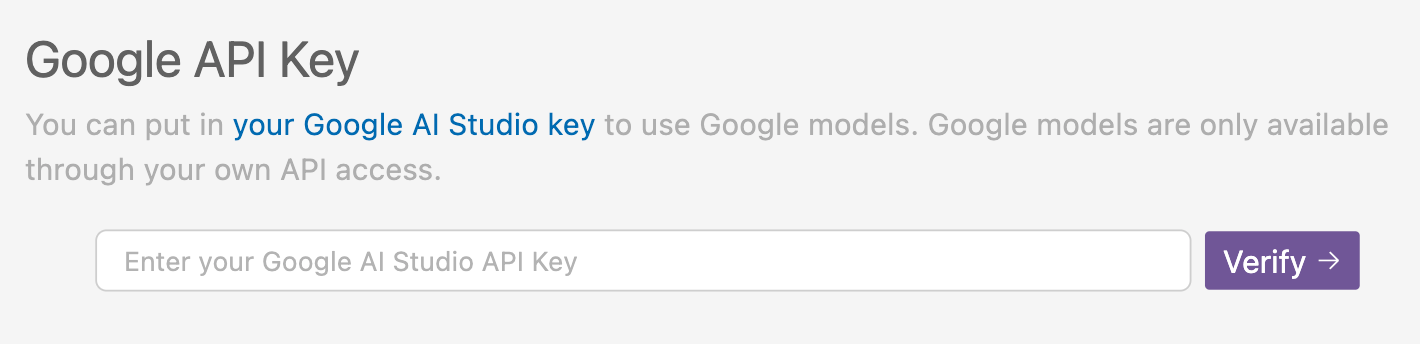
To use your own API key, go to Cursor Settings > Models and enter your API keys. Then, click on the “Verify” button. Once your key is validated, your API key will be enabled.
1. OpenAI API Keys
You can get your own API key from the OpenAI platform.
Cursor Documentation
2. Anthropic API Keys
Similar to OpenAI, you can also set your own Anthropic API key so that you will be using claude-based models at your own cost.
Cursor Documentation
3. Google API Keys
For Google API keys, you can set your own API key so that you will be using Google models such as gemini-1.5-flash-500k at your own cost.
Cursor Documentation
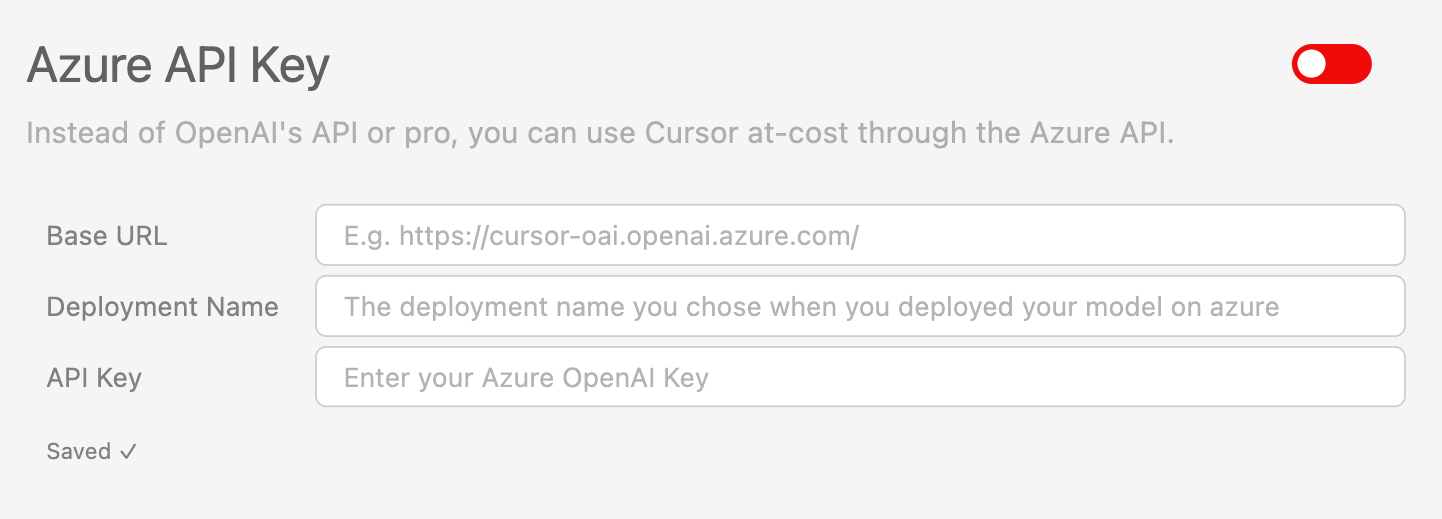
4. Azure Integration
Finally, you can also set your own Azure API key so that you will be using Azure OpenAI models at your own cost.
Cursor Documentation
GitHub Copilot vs. Cursor AI: What’s the Difference?
While both tools use AI to enhance coding, their approach, capabilities, and user experience are fundamentally different. Here's a side-by-side comparison to help you choose the right fit:
GitHub Copilot:
- AI code completion tool that integrates with existing IDEs like VS Code
- Limited project context awareness (only sees open files)
- No inline code explanations feature
- Lacks built-in AI-powered refactoring capabilities
- Limited documentation assistance
- Restricted natural language command support
- No collaboration features
- Higher learning curve for non-coders
- Installed as an extension to your existing development environment
Cursor AI Code Editor:
- Standalone AI-first code editor with comprehensive contextual tools
- Full project context awareness (Git-aware)
- Provides inline code explanations directly in the editor
- Features built-in AI-powered refactoring with natural language support
- Robust AI-assisted documentation generation and editing
- Supports complex editing and generation through natural language commands
- Optimized for solo development (not collaborative)
- More accessible for non-coders with guided AI assistance
- The dedicated application that doesn't require a separate IDE
Conclusion
Cursor AI represents a significant evolution in code editors by seamlessly integrating AI capabilities into the familiar VS Code environment. Whether you're a seasoned developer looking to boost productivity, a beginner seeking guidance, or a technical writer needing to understand complex codebases, Cursor offers tools that adapt to your workflow and skill level.
With features like contextual code generation, intelligent refactoring, project-wide understanding, and support for natural language commands, Cursor AI transforms the coding experience from purely technical to conversational and intuitive. The ability to use custom API keys from various providers gives you flexibility in how you leverage these AI capabilities.
As coding continues to evolve with AI assistance, tools like Cursor AI bridge the gap between human creativity and machine efficiency, potentially changing how we approach software development in the years to come. Whether you're looking to speed up routine tasks, learn coding more effectively, or tackle complex programming challenges, Cursor AI provides a powerful environment that grows with your needs.
____________________________________________________________________________________
Stay Updated: Follow The Product Space for the latest insights and resources on AI in product management.
Experts predict that 2025 will be a pivotal year for AI integration in product management. Want to stay ahead of the curve?
Join The Product Space’s AI for Product Management Course – your accelerated path to mastering AI tools and building revolutionary products.

.png&w=1200&q=75)