


What Is OpenAI Dots? Complete Guide for 2026
Learn what OpenAI dots are, how ChatGPT's always-on AI agents work, who can get one, what they cost, and how to set up your first dot step by step.

What OpenAI Dots is, and why it matters
OpenAI Dots, launched on September 29, 2026, gives every eligible ChatGPT user an always-on personal AI agent called a “dot.” Each dot runs on GPT-6 Astra, has its own cloud computer, and can reach only the apps you choose to connect.
The big shift is who does the coordinating. With a normal chatbot, you pick the model, find the right chat, re-explain the project, copy answers into other tools, and ask for the next step. A dot keeps context across projects, works on several things in parallel, keeps making progress between conversations, and comes back with results or questions.
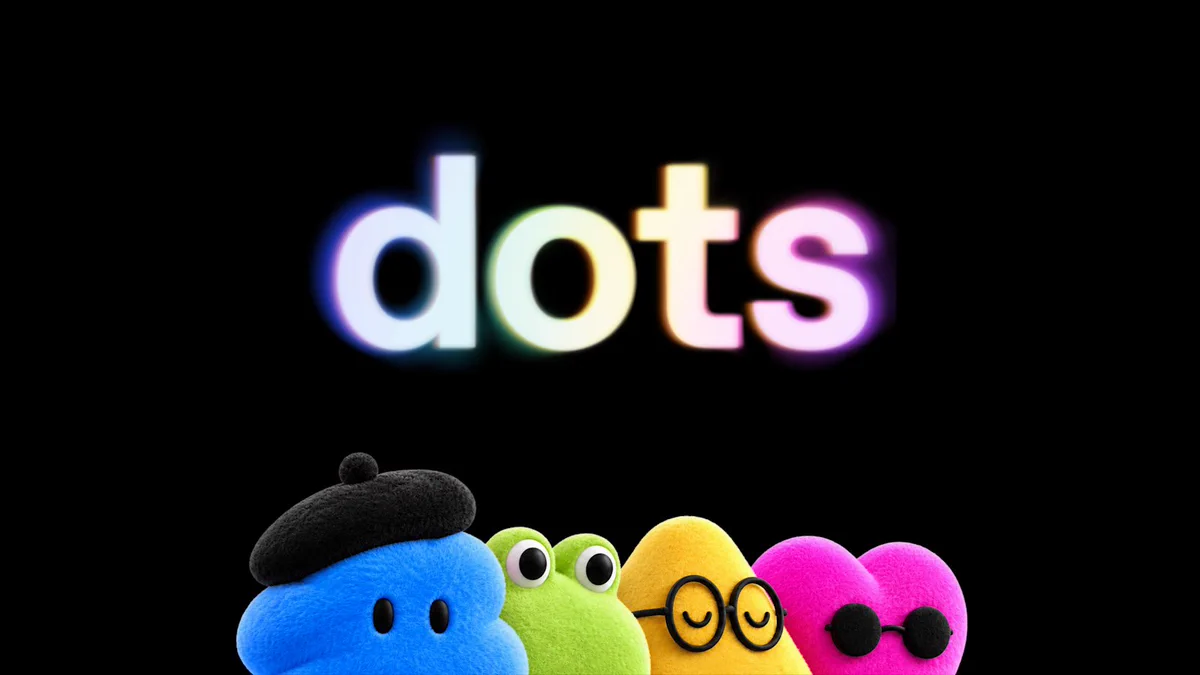
You can talk to your dot in ChatGPT, Slack, or Microsoft Teams, and you can call it by voice. Early testers compare the experience to the film Her: an assistant you speak to naturally, that knows your work, and that is there when you need it.
How a dot works: The Key Features
Four things separate a dot from an ordinary ChatGPT thread: its own computer, reach across several channels, memory with background research, and a permission layer that decides what it may do alone. Put simply, a dot keeps working after the conversation stops.
Its own cloud computer (and, optionally, yours)
Every dot runs on a separate cloud machine with its own browser. You can open that machine at any time to watch the work or step in.
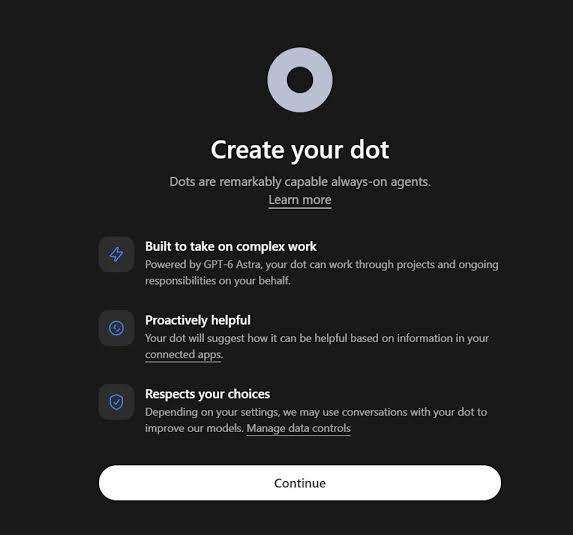
Your own computer stays off-limits unless you connect it through the ChatGPT desktop app; this is off by default and can be revoked. With local access on, a dot can start Work or Codex tasks on your machine, use local skills, and fall back to your local browser when its cloud browser is blocked. It can also start Codex cloud tasks, once you have created the environment in Codex. For supported websites, it signs in with saved passwords without the model ever seeing them.
Reachable in ChatGPT, Slack, and Teams
You can message or call your dot in ChatGPT on desktop, web, and mobile, and it messages you back with progress, questions, or decisions. Slack and Teams are supported, and texting is in a limited beta. Context follows you between channels, so a project begun in ChatGPT can continue in a Slack thread without re-explaining.
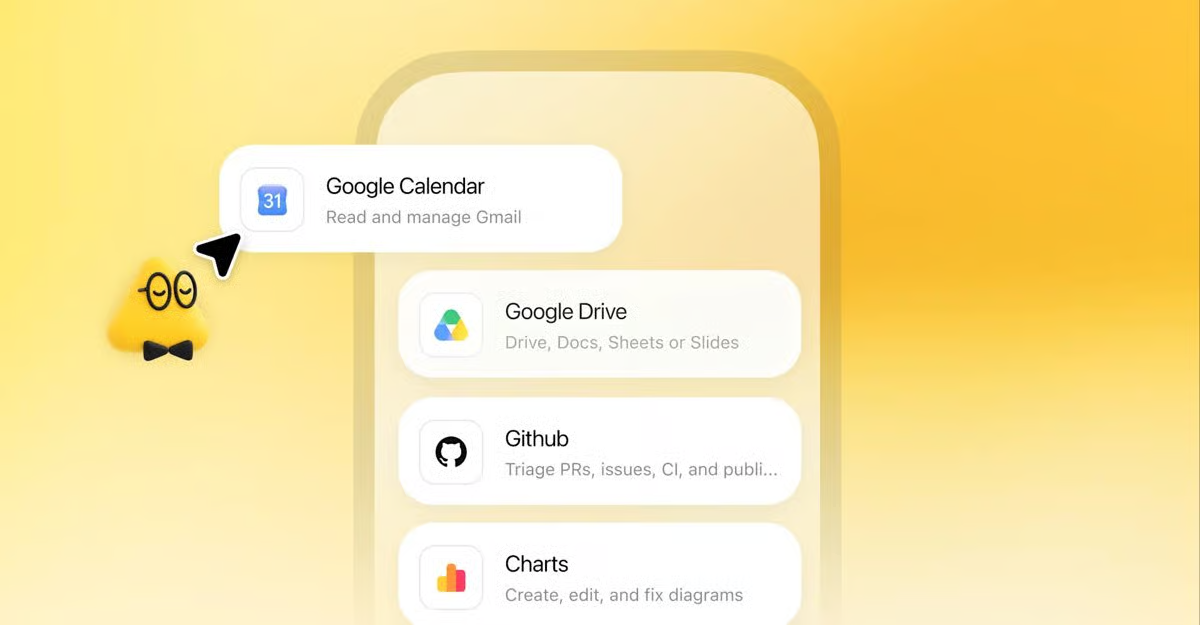
It connects to more than 4,000 apps through OpenAI’s plugin ecosystem. At launch it cannot phone you first, and it has no email address of its own, though it can use your connected personal email for your tasks.
Memory, proactive research, and schedules
A dot inherits your ChatGPT memories and builds its own, including from connected apps you have not asked about. When you are not working with it, it runs proactive research: it looks for ways to help using read-only tools, so it cannot send messages, edit app content, or control a browser or computer in that mode.
You can also schedule recurring work, such as a morning calendar review, and manage active, paused, and finished runs in the Scheduled tab of its profile.
Custom Rules and Auto-review
Dots ship with built-in rules on when to act and when to ask. Custom Rules let you override them per action, choosing one of four behaviours:
Take action without asking
Take action if pre-approved (meaning you explicitly asked for it in your prompt)
Ask before taking action
Hand off to you
Underneath sits Auto-review, which checks any action that could affect your accounts or share information against your instructions, your rules, and OpenAI’s safety requirements. Some sensitive actions, such as changing a password, always stay with you, and you cannot switch off Auto-review or the read-only limit on proactive research. Separate monitoring can pause or stop a dot if it spots a safety concern.
Safety training
OpenAI says GPT-6 Astra was trained to refuse harmful requests, including biological and cyber misuse. Red teaming focused on shifting instructions, ambiguous requests, and attempts to push a dot beyond its permissions. OpenAI still warns that dots make mistakes, so review anything consequential.
Specialist dots for organisations
Specialist dots are company-owned agents with a defined job rather than one person to serve. Each gets its own identity, credentials, and system access, and improves from team feedback. OpenAI shaped them through internal tests in procurement, invoice processing, email marketing, customer support, and contracting.
They are offered only through focused enterprise pilots, with OpenAI engineers helping define responsibilities, tools, and approval paths. OpenAI is also integrating them with Microsoft Agent 365 so companies can govern them with existing security controls.
How to get started with your dot ?
Setup takes place on desktop only, and the best first job is one you already know how to check. Here is the path, combining OpenAI’s help docs with advice from early testers.
Create the dot on desktop. Go to chatgpt.com/dots in a desktop browser or the ChatGPT desktop app. You cannot create one on mobile, and mobile web is unsupported. Name your dot and pick a character; the default handle
@yourname-dotbecomes@yourname-agentnameonce named.Connect only what the job needs. Review the proposed app connections and read each permission. Check your company’s policy before linking work accounts. Messaging channels like Slack are also connected from desktop. Local computer access stays off unless you turn it on.
Ask it what to delegate first. A great opener: ask the dot, based on what it knows about you and your connected apps, what you should hand it first, and why. Add context about current projects and anything that keeps slipping to next week.
Hand over a real, unfinished, reviewable task. Give a clear outcome, a defined place to look, and a stopping point: a draft for you, an edit to a named file, or a shortlist before any purchase.
Set boundaries early. Say which sources to use, what it may change, and what needs approval. Recurring tasks need a schedule, a destination for results, and an end date. Write these into Custom Rules too.
Coach it like a new hire. Explain your standards, show examples, and give concrete feedback (“use the same font, size, and placement as the first call-to-action; keep the timing”). Point to the weak assumption or missing source rather than saying “make it better.”
Use voice when you are still thinking. Start a call from your dot conversation and talk the project through. You can type during the call, and assigned work keeps going after it ends. At launch, only you can start a call.
Continue from anywhere. After setup, message your dot from the ChatGPT mobile app, Slack, or Teams.
Prompt ideas to adapt
Try briefs like these. Each names the sources, the deliverable, and where the dot must stop.
Slipping commitments: review the last two weeks of named email threads and meeting notes, list promises that still look open with evidence links, and leave any replies as drafts.
Meeting prep: use the agenda and documents to identify the decision needed, open objections, and questions to ask, then draft a recommendation and flag anything unverified.
Trip planning: compare two options within your dates and budget, check availability and cancellation terms, and bring back an itinerary before anything is booked.
Stalled project: read the latest folder, explain where things stand and what is blocked, and draft the next deliverable with missing facts clearly marked.
Vendor watch: each weekday morning until a set date, check vendor changelogs and pricing pages, keep a dated log with links, and alert you only for breaking changes.
Bug fix: reproduce an issue in a named repo, make the smallest fix, and open a draft pull request with test evidence, asking before deploying or merging.
Spreadsheet reconciliation: update a weekly report from two exports, keep formulas intact, flag duplicates and unmatched rows, and save a new dated version rather than overwriting.
Test it before you trust it
Before relying on a dot, run about ten past tasks whose correct answers you already know. Score each as accepted, accepted after correction, or rejected, and record review and rework minutes.
Useful traps include an unchanged web page (does it invent news?), a planted duplicate row, and a mid-task change such as a revoked permission. Then work out your cost per accepted task: subscription share plus extras plus human review time, divided by accepted results.
Use cases, pricing, safety, and limits
Dots suit work that recurs, builds up context, and produces output you can check. Your first dot costs nothing extra on an eligible plan, but long-term usage terms are not yet public.
What people are using dots for
OpenAI’s launch examples all follow one pattern: the dot learns your standards, watches for a trigger, does the work, and returns something for review.
Area | What the dot does |
|---|---|
Software | Watches customer feedback, scopes small fixes, builds and tests them, and returns pull requests with demo videos |
API retirement | Maps dependencies, prepares code and tests, and tracks remaining calls |
Product launches | Reworks positioning, assets, and docs when scope changes |
Research | Reruns analyses as new data lands and flags surprises |
Enterprise sales | Checks requirements against product docs and builds a proof of concept |
Investor updates | Tracks usage and revenue and refreshes the deck |
Content | Finds clip moments in transcripts and drafts show notes and social posts |
The most quoted early-tester story is tiny: a dot noticed its owner had forgotten to invoice a publication, prepared the invoice, and sent it after he approved. Nobody asked it to; it found the gap during proactive research.
Dots for coding work
A dot coordinates rather than codes. When code is needed, it creates a Codex task, either in a Codex cloud environment you have already published or on your connected computer. The task gets only the context the dot passes along, appears as its own thread you can steer, and counts toward your Codex limits. A sensible default: let the dot open draft pull requests, but keep merging for yourself.
How dots fit with other OpenAI tools
Tool | Job | Lifespan |
|---|---|---|
ChatGPT chat | Answers one message | One conversation |
ChatGPT Work | Runs a task on your computer or a cloud container | One task |
Codex | Writes and runs code in a repository | One task or a schedule |
Workspace agents | Shared, builder-configured team agents | Ongoing, can be scheduled |
Your dot | Owns ongoing responsibilities and delegates to the others | As long as you keep it |
There is no public dots API. Developers who want full cost control can call the underlying model, gpt-6-astra, directly through OpenAI, Microsoft Foundry, OpenRouter, or AWS Bedrock.
Pricing and Availability
The first dot is included at no extra cost on Pro and Business Premium. Chatting with it does not count toward ChatGPT limits; background “deeper work” uses a plan allowance with extended limits in the launch month; and Codex or Work tasks it starts count normally. OpenAI plans paid add-ons for extra dots, speed, and monthly capacity, with no prices yet.
Plan | Price (USD) | Dots access at launch |
|---|---|---|
Pro | $100, $200, or $500 per month | Adults outside the EEA, UK, and Switzerland |
Business Premium | $125 per user monthly, or $100 billed annually | All supported ChatGPT regions |
Enterprise, Edu, Healthcare | Custom | Beta, off until an admin enables it |
Specialist dots | Not published | Focused enterprise pilots only |
Free, Go, Plus, Business Standard | — | Not included at launch |
Rollout is gradual and can take several days to reach an account.
Privacy and data
Business, Enterprise, and Edu content is not used for training by default. On personal plans, the “Improve the model for everyone” setting decides. Proactive research and a dot’s private notes are not trained on directly. OpenAI may still review activity in limited cases, such as safety, even with training off.
A few memory rules matter before you connect email. You cannot view, edit, or delete individual dot memories; disconnecting an app keeps what was already learned; and deleting the dot is the only full reset. Deletion removes its conversations, notes, and schedules, but not files, Codex threads, or ChatGPT chats it created.
Safety test results
OpenAI added a dots appendix to the GPT-6 Astra system card. These are OpenAI’s own tests, not independent audits.
Test | Result |
|---|---|
Prompt injection in bulk email (16,600 attacks across 50,000 emails) | 0 successful attacks |
Adaptive email attacks (2,638 attempts) | 0 successful attacks |
Scope or permission changed mid-task | 45 of 49 episodes passed; all 17 explicit changes handled |
Unannounced scope drift across chained tasks | Moderate violations rose from 8.6% (5 tasks) to 19.7% (10 tasks); no severe breaches |
The takeaway: keep each responsibility tightly scoped and state permission changes explicitly. Juggling many loosely related jobs raises the chance of information leaking between them.
Limitations at launch
Setup is desktop only; mobile web is unsupported.
Pro users in the EEA, UK, and Switzerland are excluded for now.
A dot cannot call you and has no email address of its own.
Texting is a limited beta for US Pro users only.
Only one personal computer can be connected, and it must be online with ChatGPT open.
Some websites block cloud browsers.
Enterprise beta excludes FedRAMP, EKM, and UAE-residency workspaces, with no data residency or zero data retention.
No independent benchmarks, uptime SLA, or post-launch usage terms exist yet.
How dots compare with rivals
Product | Where you talk to it | Best for |
|---|---|---|
OpenAI dots | ChatGPT, voice, Slack, Teams | Ongoing responsibilities across your apps and Codex |
Grok Bot (xAI) | Grok Bot desktop and mobile apps | Several named bots running skills on routines |
Cursor Projects | Cursor’s Agents view | Long-running coding work |
Meta Muse | Muse app and WhatsApp | Personal errands like travel and forms |
Also note: “Dots Studio” from Xiaohongshu (the team behind dots.ocr and dots.llm1) is an unrelated company and has nothing to do with OpenAI dots.
Final verdict: should you try a dot?
If you already pay for Pro or Business Premium, yes: the first dot costs nothing extra, and the only real investment is setup time and careful rules. Dots shine on the work nobody gets around to, such as the forgotten invoice, the weekly feedback sweep, or the stalled side project.
Start small. Pick one responsibility you check by hand each week, connect only the apps it needs, and tell the dot to draft rather than act. Watch its output for a few days, then add a schedule, and only after that a Custom Rule that lets it act alone.
If you already build agents on the API, keep your own loop for now; you get exact cost tracking and reproducible tests that dots do not offer. Either way, recheck OpenAI’s usage terms after the launch month before you budget around today’s limits.
Learn better with active recall quiz
How well do you know What Is OpenAI Dots? Complete Guide for 2026? Let's find out with this quick quiz! (just 8 questions)
Question 1 of 8
Q1: When did OpenAI launch dots?
Frequently Asked Questions
A dot is a persistent, always-on AI agent inside ChatGPT, powered by GPT-6 Astra. It has its own cloud computer and browser, connects to apps you approve, remembers your preferences, and keeps working on goals between conversations. You can reach it in ChatGPT, Slack, Teams, or by voice call.
Your first dot is included at no extra cost with ChatGPT Pro ($100 to $500 a month) or Business Premium. Chatting with it does not use your ChatGPT limits, but deeper background work draws on a plan allowance, and tasks it starts in Codex or Work count as usual. Pricing for extra dots and post-launch limits has not been announced.
No. It works on its own cloud computer, and local access is off until you enable it in the desktop app and confirm. App access follows plugin permissions, Auto-review checks risky actions, and Custom Rules set what needs approval. Steps like password changes and money transfers always go back to you.
A chat answers one message and stops, and Codex handles one coding task at a time. A dot holds ongoing responsibilities, decides when to follow up, and delegates to Codex or ChatGPT Work when needed, then checks the results and reports back.
Found this useful? You might enjoy this as well
What Is the Modern PM Tech Stack in 2026?
Most PM teams run overlapping AI and prototyping tools. Learn how to build a lean 2026 PM tech stack: fewer tools, one clear job each, and research upstream.

The Claude Setup That Builds Polished Websites
Set up Claude Code to build polished websites: install the Emil Kowalski, Impeccable, and Taste skills, then connect Figma MCP and Playwright. Full steps.